How to Blur a Layout in Pixelmator Pro Mac (Guide 2026)
How to Blur a Layout in Pixelmator Pro Mac (Guide 2026)
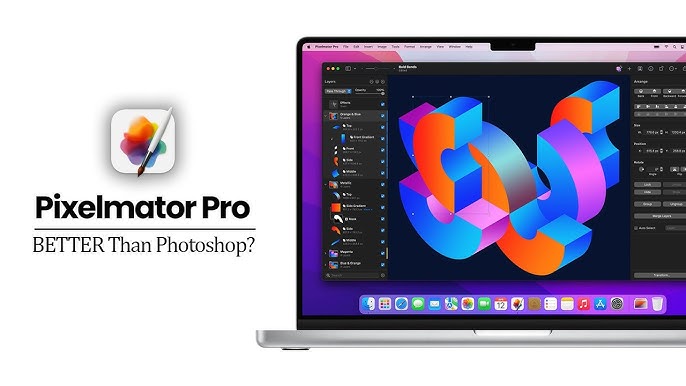
Pixelmator Pro is one of the best photo editing software for Mac, especially for designers who want professional results without complex tools. One of its most searched features is layout blur, which helps create modern UI designs, website headers, and eye-catching thumbnails. In this step-by-step guide, you’ll learn how to blur a layout in Pixelmator Pro for Mac using beginner-friendly and professional techniques optimized for macOS.
How to Blur a Layout in Pixelmator Pro for Mac (Step-by-Step Guide)?
Pixelmator Pro for Mac is one of the most powerful and user-friendly photo editing applications available today. Many designers and content creators use it to create modern layouts with background blur effects.
In this tutorial, you will learn how to make a layout blur in Pixelmator Pro on macOS using simple and professional methods.
What Is Layout Blur in Pixelmator Pro?
Layout blur is a design technique where the background or specific parts of an image are blurred to highlight text, buttons, or main content. This effect is widely used in:
Website UI designs
App mockups
YouTube thumbnails
Social media banners
Pixelmator Pro offers multiple blur tools optimized for Apple Silicon Macs (M1, M2, M3).
Method 1: Blur the Entire Layout in Pixelmator Pro
Step 1: Open Your Image
Launch Pixelmator Pro
Click File → Open
Select your layout or image file
Step 2: Select the Background Layer
Open the Layers panel
Click on the layer you want to blur
Step 3: Apply Blur Effect
Go to Format → Effects
Choose Blur
Select Gaussian Blur
Step 4: Adjust Blur Strength
Use the Radius slider
Adjust until the layout looks smooth and professional
 Best for full background blur and clean layouts
Method 2: Blur a Specific Area (Partial Layout Blur)
Step 1: Select the Area
Choose the Selection Tool
Use Rectangle Selection or Free Selection
Select the area you want to blur
step 2: Apply Blur
Go to Effects → Blur
Choose Gaussian Blur or Motion Blur
Step 3: Apply Changes
Adjust the blur amount
Press Enter to apply
 Best for hiding details or highlighting text areas
Method 3: Professional Layout Blur Using Mask
This method gives a high-end UI blur effect.
Step 1: Duplicate the Layer
Select the background layer
Press Command + J
Step 2: Add Blur
Apply Gaussian Blur to the duplicated layer
Step 3: Add Mask
Click Add Mask
Paint on the mask to control where blur appears
 Perfect for modern web and app designs
Method 4: Blur Background Behind Text
Duplicate the background layer
Apply blur to the duplicated layer
Add text above it
Reduce opacity if needed
This style is commonly used in website headers and thumbnails.
You may also like & download this: Proton VPN Crack APK Free Download For MAC (2026)
Best Blur Effects in Pixelmator Pro
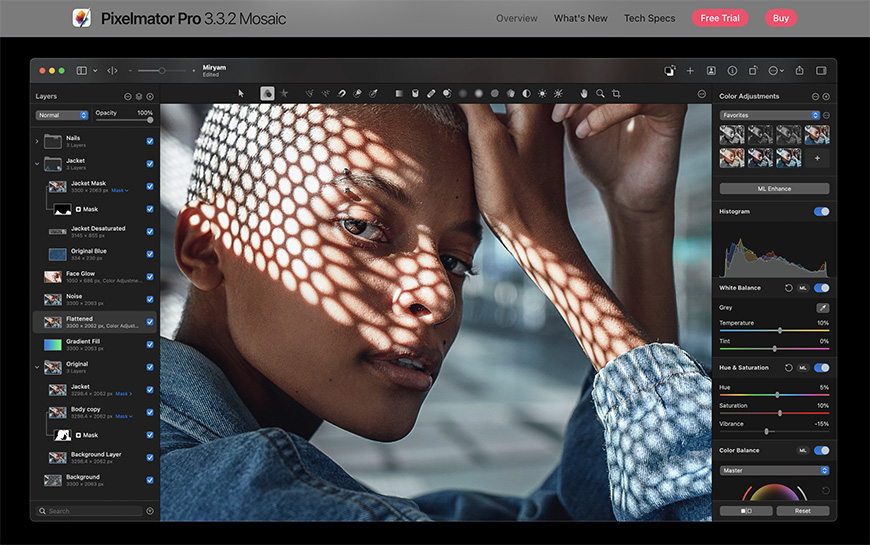
Gaussian Blur – Soft background blur
Motion Blur – Dynamic movement effect
Zoom Blur – Focus and depth
Bokeh Blur – Portrait and cinematic look
Tips to Get Better Results
Always work on duplicate layers
Keep blur subtle for a professional look
Combine blur with opacity and shadows
Avoid over-blurring text areas
Why Pixelmator Pro Is Best Photo Editing Software for Mac
Fully optimized for macOS
No monthly subscription
Fast performance on Apple Silicon
AI-powered image editing tools
Pixelmator Pro is a strong alternative to Adobe Photoshop for Mac users.
Final Thoughts
Learning how to blur a layout in Pixelmator Pro for Mac can dramatically improve your designs. Whether you are a beginner or professional designer, Pixelmator Pro makes layout blur simple, fast, and visually appealing.
Frequently Asked Questions (FAQs)
Can I blur only part of an image in Pixelmator Pro?
Yes, Pixelmator Pro allows you to blur specific areas using the Selection Tool or Layer Masks, giving you full control over the blur effect.
Is Pixelmator Pro better than Photoshop for Mac?
Pixelmator Pro is a powerful Photoshop alternative for Mac, especially for users who want a one-time purchase of a monthly subscription.
Does Pixelmator Pro support Apple Silicon (M1, M2, M3)?
Yes, Pixelmator Pro is fully optimized for Apple Silicon Macs, delivering fast performance and smooth editing.
What is the best blur effect in Pixelmator Pro?
Gaussian Blur is the most commonly use effect for layout and background blur due to its smooth and natural look.


Comments
Post a Comment